
Lesson 2.1: Formulas and Functions in Excel
Objective:
Formulas and functions in excel are the key tools that enable you to manipulate data, perform calculations, and automate tasks. The knowledge of these tools can enhance your productivity and accuracy while working in Excel. In this lesson, you will gain the essential knowledge of formulas and functions in Excel.
Formulas in Excel and the basic structure of it :
- A formula is a set of instructions that you give to Excel for performing calculations or operations using the data in your spreadsheet.
- In other words, a formula in Excel is essentially an expression used to calculate values within a single cell or a range of cells. An example of a formula is =B2+B3+B4, which adds up the values in cells B2 through B4.
- Formula starts with an equal sign (=) and can involve simple math, comparisons, or even more complex functions to manipulate and analyze your data.
The basic structure of an Excel formula consists of three main elements:
Equal Sign (=):
- Every formula in Excel begins with an equal sign. This tells Excel that the following characters constitute a formula.
References or Values:
- After the equal sign, you can include references to cells or ranges that contain the data you want to use in your calculation. For example, to add the numbers in cells A1 and A2, you would write =A1+A2. You can also directly use values in your formula, such as =5+3, where 5 and 3 are the values.
Operators:
- Operators are symbols that perform specific operations. The common operators include:
“+” for addition
“-” for subtraction
“*” for multiplication
“/” for division
You can combine references or values with operators to create more complex formulas.
For instance, =(B1*C1)/100 that implies the multiplication of the values in cells B1 and C1 then divide by 100.
Excel Functions:
In Excel, there’s another important thing that is named as a function. The words “formulas” and “functions” are similar, but they have some differences. A function is a ready-to-use formula that’s already built-in. Functions are like special tools that do specific math tasks in a certain way, using values known as arguments or parameters.
That means, a function in Excel refers to a predefined formula that is already built into the software. Functions are designed to perform specific calculations in a predefined order based on specified values, often referred to as arguments or parameters.
So, Understanding the basic structure of Functions in Excel:
- Start with an Equal Sign (same as formula): Always begin a function with an equal sign (=) .
- Specify the Function Name: After the equal sign, write the name of the function you want to use. For instance, AVERAGE calculates the average of a range of numbers.
- Enclose Arguments in Parentheses: Place all the function’s arguments (values or cell references) within parentheses.
- Separate Arguments with Commas: If a function requires multiple arguments, separate them with commas inside the parentheses.
You can find all available Excel functions in the Function Library on the Formulas tab:
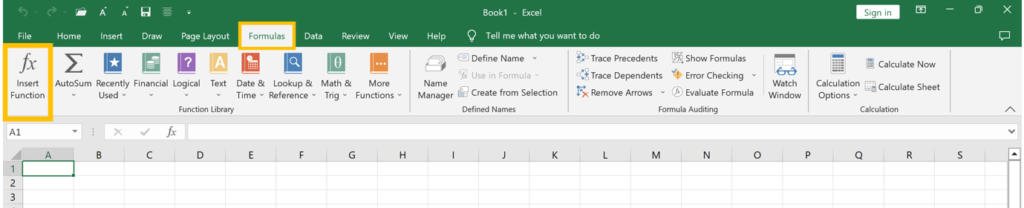
Figure: Formula Tab
Let’s say you have numbers in cells B2,C2 & D2, and you want to add them together. Instead of writing each number in a formula, you can use the SUM function or add the values of three cells . It goes like this: =SUM(B2:D2) Or =B2+C2+D2 This adds up all the numbers in those cells automatically.

Figure: SUM functions to add values
Examples of Excel functions include:
SUM: Adds values within a selected cell range.
AVERAGE: Computes the average of values within a given cell range.
IF: Executes a logical test, returning one value for true conditions and another for false.
VLOOKUP: Searches for a value in the first column of a table and retrieves a corresponding value from another column.
MIN and MAX: MIN() identifies the minimum value within a range, while MAX() finds the maximum.
COUNT: Tallies the total number of selected cells, excluding blanks and non-numeric formats.
POWER: Raises a number to a specified power.
CEILING and FLOOR: CEILING() rounds a number up to the nearest specified multiple.
CONCAT: Joins multiple strings or cells into a single string.
TRIM: Eliminates extra spaces from the start, middle, and end of a string, useful for identifying unique values.
REPLACE and SUBSTITUTE: REPLACE swaps part of a string with another, while SUBSTITUTE replaces specific instances within a string.
LEFT, RIGHT, and MID: Extracts characters from the start, end, or middle of a string respectively.
UPPER, LOWER, and PROPER: Manipulates text case (upper, lower, or proper case).
NOW and TODAY: NOW returns the current date and time, while TODAY provides the current date only. Useful for extracting specific components like day, month, year, hours, and minutes from date-time data cells.
DATEDIF: Calculates differences between two dates, offering the count of days, months, weeks, or years as needed.
IF: Functions similar to an if-else statement in programming, returning specific values based on defined logic.
Some basic practical implementations of excel formulas and functions:
For Practically we can do some basic mathematics formulas and functions using addition, subtraction, multiplication, and dividation.
In Excel, to add the two numbers from two cells:
- First click on the target cell where you want the total to appear.
- Then type = in the cell to start the formula.

Figure: Add two numbers
In the above figure, the process includes:
- In cell A2, type the first number, let’s say 24.
- In cell A3, type the second number, for example, 50.
- Now, to add them up, go to cell B2.
- Type =A2+A3 in cell B2.
- Just like in regular math where you’d write 24 + 50, in Excel, you use the equals sign (=) to say you’re doing a calculation.
- The formula in B2 adds the numbers in A2 and A3, and when you press Enter, B2 will show the result, which is 74.
Calculating the Average of Numbers
Similarly previous example:
- In cells A1 to A5, type some numbers, like 10, 15, 20, 25, and 30.
- To find the average, go to a new cell, for example, B1.
- Type =AVERAGE(A1:A5) and press Enter.
- Excel will calculate and display the average of the numbers you entered.

Figure: AVERAGE values
Checking if a Cell Value is Equal to a Specific Text
- In cell A1, type a word, for example, “strawberry”
- In cell B1, type =A1=”strawberry” and press Enter.
- Excel will show TRUE if the value in A1 is “strawberry,” and FALSE if it’s not.


Figure: Cell Value is Equal to a Specific Text
Concatenating Text with Numbers
- In cell A1, type your name, for example, “John.”
- In cell A2, type your age, for example, 25.
- In cell A3, type =”My name is ” & A1 & ” and I am ” & A2 & ” years old.”
- Press Enter. Excel will join the text and numbers to create a sentence.

Figure: Concatenating Text with Numbers
- For calculating averages, you use a function like =AVERAGE().
- For checking equality, you use the equals sign (=) and the comparison operator (= in this case).
- For text concatenation, you use the ampersand (&) to combine text and values.
By the end of this lesson, you will have a solid foundation in creating formulas, understanding basic arithmetic operations, and utilizing common functions. These skills are fundamental to unlocking the full potential of Excel for data analysis, reporting, decision-making and many more.