
Lesson 3.2: Cell Borders and Shading
Objective:
In this lesson, you’ll discover how to enhance the organization of your worksheets by adding cell borders and shading to cells. Gain insight into various border styles and explore different shading options to elevate the visual presentation of your data. By the end of this session, you’ll be proficient in using borders and shading effectively, optimizing the structure and clarity of your Excel worksheets.
Cell Borders in Excel:
Cell borders in Excel refer to the lines surrounding a cell or a group of cells. Typically, these borders are employed to highlight particular sections of a spreadsheet, making them more prominent. For instance, adding borders can draw attention to totals or crucial data, directing the viewer’s focus to specific areas on the sheet.
Excel offers various border options, allowing users to define and customize the appearance of borders. You can add borders to different sides of a cell—top, bottom, left, right—or to all sides. Additionally, you can choose different line styles (such as solid, dashed, or dotted), colors, and thickness for these borders.
Cell borders in Excel are essential for:
- They guide attention to specific cells, aiding quick identification of vital information.
- Borders create a structured layout, enhancing clarity and understanding of data.
- They emphasize key data points, making important figures or sections stand out.
- Well-designed borders enhance the overall appearance of the spreadsheet.
- Borders maintain a neat layout in printed copies, ensuring readability.
- They offer options for personalizing worksheet appearance.
- Clear borders distinguish between cells, rows, or columns for better data interpretation.
What are the steps to apply borders to selected cells in Excel?
Applying Borders in Excel
Creating a border is one of the easiest things to do in Excel.
Applying Borders from Ribbon
Excel Ribbon is the primary area for accessing most existing commands or tools. While creating a border in Excel, we can take advantage of the Excel ribbon and apply a border to the desired cell using the following steps:
- Select the Data: Click and drag to select the cells, table, or text where you want to apply borders. This step is essential because borders will be applied to the selected area.
- Find the Borders Icon: Within the Home tab, there should be a section labeled “Font” or “Paragraph” with various formatting options. Look for an icon that represents borders. It may look like a square divided into smaller squares or have lines around it.

- Press on the Borders Icon: Click on this icon. It may have a dropdown menu or open a panel showing different border options.
- Choose the Border Style: Select the border style you want to apply. This might include options like “All Borders,” “Outside Borders,” “Top Border,” “Bottom Border,” etc.

- Apply Borders: Click on the specific border option you want to apply to the selected cells or text. You might need to click multiple times if you want different borders on various sides.

Applying custom borders to specific cells or ranges using the Format Cells dialogue box:
- Click on the cells or range of cells to which you want to apply borders.
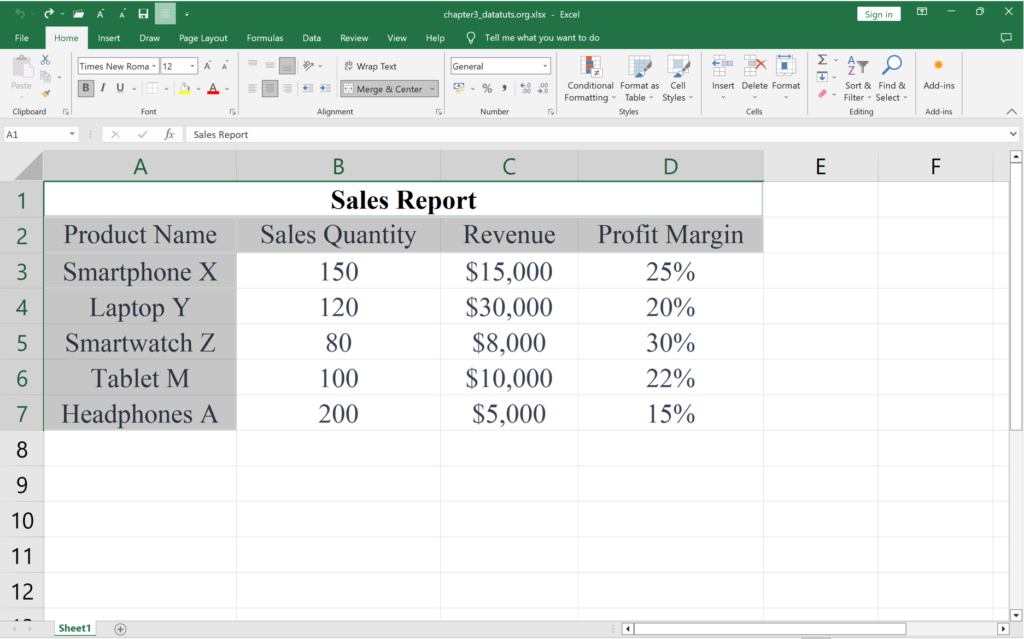
- Right-click on the selected cells and choose “Format Cells” from the context menu that appears. Alternatively, you can press Ctrl + 1 as a shortcut to open the “Format Cells” dialog box.
- In the “Format Cells” dialog box, locate and click on the “Border” tab. This tab contains options for customizing cell borders.
- Select the border style you want to apply (e.g., outline borders, specific border positions) from the options available in the dialog box.
- Preview the selected border style in the preview section of the dialog box. Once satisfied, click “OK” to apply the chosen borders to the selected cells.
- Check the cells to ensure that the borders have been applied according to your preferences.

Using the “Format Cells” dialog box allows for more detailed and precise customization of borders in Excel, offering various border styles and settings to suit your specific requirements.
Key Points to Keep in Mind:
- Quickly access Borders by using the shortcut Alt + H + B, which takes you directly to the Border option.
- Applying borders to data tables is crucial for clarity. Ensure to add borders after completing each section to define the dataset.
- Proper alignment is essential. When framing data with borders for multiple uses, it automatically sets column widths, ensuring consistency across various sources.
Cell Shading in Excel:
Cell shading is a valuable tool in Excel, enabling you to emphasize particular cells within a worksheet. It helps direct attention to crucial information, contributes to data organization, and enhances the visual appeal of your spreadsheet. Understanding cell shading is essential for effectively highlighting key elements and creating a well-structured and visually pleasing Excel document. By applying shading, you can visually distinguish sections, prioritize important data, and improve overall readability.
Key Points for Effective Cell Shading in Excel:
- Shading helps highlight essential data, making it stand out for quick identification.
- Shading isn’t just about looks; it helps you see patterns and trends in your data more clearly.
- Excel offers various shading options like fill color, conditional formatting, and customizable shading, giving you tools to enhance your worksheets.
- Use shading strategically to organize data, creating a visual hierarchy that’s easy to follow.
- Shading communicates relationships, trends, and correlations, providing quick insights for informed decision-making.
- Shading makes your worksheets visually dynamic and user-friendly, improving the overall interaction with your data.
Applying Shades from Ribbon
The Ribbon provides quick access to Excel’s existing tools, and it is very easy to apply color shades from the Ribbon area. We can perform the following steps and use any desired shade or background color for the cell:
First, we need to select the cells where we want to apply the shading.
After selecting the desired cells, we must navigate the Home tab and click the drop-down icon next to the ‘Fill Color’ option, as shown below:

Excel displays various colors under the Theme Colors and Standard Colors in the next window.

We can click on any desired color, and the same will be immediately applied to the selected cell as a background color.