
Lesson 2.5: Common Excel Errors and Troubleshooting
Objective:
In this lesson, we will explore some of the common errors that beginners often encounter while working with Excel and discuss effective strategies to resolve them. By the end of this lesson, you will Recognize Common Excel Errors, implement solving strategies , prevent and minimize errors and utilization of a few error handling techniques.
Let’s try to discuss a few of these common errors. It may help you overcome the obstacles and enhance your Excel skills effortlessly.
Understanding Excel Errors:
An ‘Excel Error‘ serves as an automatic notification generated by Excel when it encounters difficulties in processing a given formula or function. Basically, it acts as a system-generated alert that signals issues preventing an operation from running as expected.
For example, if you create a formula attempting to divide a number by zero, Excel will present a #DIV/0! error. Similarly, if the formula contains incorrect cell references, a #REF! error will be displayed.
These error messages follow a general format, denoted as =#Error_Type!, where ‘Error_Type!’ is replaced by the specific error encountered, such as #NULL!, #DIV/0!, #VALUE!, #REF!, #NAME?, #NUM!, or #N/A. Each of these error types signifies a different problem in your Excel calculations.
For instance, if you try to perform an arithmetic operation on text, Excel will generate a #VALUE! error. This error communicates that numerical operations cannot be conducted on textual data, emphasizing the need for data consistency in your formulas. So, There are few most common error in Excel, which are:
##### Error – Column Width Issue
This ##### error in Excel is not your typical formula-based error; instead, it’s a formatting issue related to column width. This error occurs when the width of a column with datatype (i.e. date, number etc.) is insufficient to display the entire contents of the cells within that column.
Let’s explore this with an example:
Suppose you have a column containing some dates, and suddenly, you notice a series of pound signs (#####) in the cells instead of the expected date values. This is a clear indication of the ##### error.

Figure: ##### (hash) Error
- Column A,B contains a list of dates.
- Narrow Column Width: Now, let’s make the column too narrow to see the appearance of the ##### error.
- Understanding the Error: As a result of the narrow column width, Excel cannot show the complete values, leading to the appearance of ##### in each cell.
To resolve the ##### error:
Adjust Column Width:
- Hover over the line between column headers to activate the double-headed arrow.
- Double-click to automatically adjust the column width based on the content.
Manual Adjustment: Alternatively, right-click between column headers, choose “Column Width,” and enter a specific width that accommodates the content.
By ensuring an adequate column width, you allow Excel to display the full content of your cells, eliminating the ##### error.
# Div/0! Error – Division by Zero Error:
The #DIV/0! error is a common Excel error message that occurs when a number is divided either by zero (0) or an empty cell. The name of this error signifies a mathematical operation that is undefined due to division by zero. Excel displays this error message when the divisor cell is either blank or contains a zero.
Let’s explore on practical Scenario:
In a retail financial information tracking daily sales and expenses, an Excel sheet displays the information such as dates, sales figures, expenses, and an attempted calculation for profit margin as a percentage.
However, an issue arises on 03-12-2023, where the Profit Margin column presents a “#DIV/0! – Division by Zero Error.” This error occurs from an empty expense entry for that date.
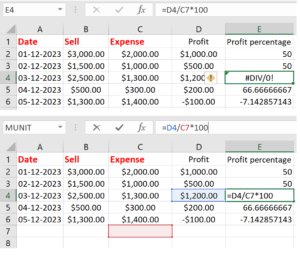
Figure: # Div/0! Error – Division by Zero Error
To solve the issues:
- To resolve the #DIV/0! error in that row, you may review the formula used for calculating the Profit Percentage and ensure it handles zero sell values appropriately to avoid division by zero errors.
- Adjusting the formula to include a check for zero sell values would help prevent such errors.
- For instance, an adjusted formula using the IF function to prevent division by zero could be:
=IF(ISBLANK(C4), “Error!”, IF(C4=0, 0, (B4-C4)/B4*100))
- This formula checks if the Expense value is blank. If it’s blank, it returns a string (“Error!”). If the Expense value is zero, it returns 0 to prevent the division by zero error. Otherwise, it calculates the Profit Margin percentage as usual. Adjust the cell references based on your spreadsheet structure.
Troubleshooting:
- Identify the cells involved in the division.
- Implement conditional statements or the IFERROR function to handle potential zero denominators.
- Double-check your data to ensure division is appropriate in the given context.
#Name? Error
The #NAME? error frequently appears in Excel when a formula encounters difficulty recognizing a particular element. It can occur because of errors such as misspelling a function name, the absence of double quotation marks around text values, or utilizing an invalid named range within the formula.
Here are some of the most common issues that can cause a #NAME? error in Excel:
- Misspelled Function Names: A frequent issue arises when function names are misspelled within formulas,violating Excel’s strict syntax requirements. Example: Instead of writing =COUNT(A1:B10), accidentally typing =COUNTT(A1:B10) will result in a “#NAME?” error.
- Missing Quotation Marks for Text Values: Failure to enclose text values in double quotation marks can confuse Excel, as it may interpret the text as a reference rather than a literal value. Example: Instead of =”Product A”, entering =Product A without quotes may trigger a “#NAME?” error.
- Invalid Named Ranges: Using an incorrectly spelled or non-existent named range within a formula can lead to the “#NAME?” error. Example: If the range is named “SalesData,” but the formula uses =SUM(SalesData), Excel will not recognize the named range and display the error.
- Incorrect References or Syntax: Errors in referencing cells, selecting ranges, or using incorrect formula syntax can generate the “#NAME?” error. Example: Writing =IF(A1>10, “Yes”, “No” with a missing parenthesis will result in a “#NAME?” error due to incorrect syntax.
One of examples for #NAME shown in the figure:
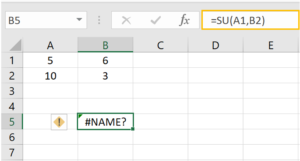
Figure: #Name? Error
- The formula in B5 attempts to make =SUM(A1,B2) but formula is mistyped as =SU(A1,B2)
- This is known as misspelled #NAME error.
Fix the #NAME Error in Excel:
- Spelling Verification: Confirm the accuracy of the formula or function name by meticulously checking for correct spelling, including attention to capitalization. Example: Ensure that =AVRAGE(A1:A10) is corrected to =AVERAGE(A1:A10).
- Cell Reference Review: Scrutinize the formula’s cell references to guarantee their validity and accurate referencing of the intended cells or ranges. Example: Modify =SUM(B1+B2) to the correct syntax =SUM(B1:B2) for the intended range.
- Named Range Check: If the formula employs named ranges, validate that these names are accurately defined and spelled. Example: Confirm that the named range “TotalSales” is consistently referred to as =SUM(TotalSales).
#Value! Error – Value Error:
The #VALUE! error in Excel occurs when a formula or function contains invalid data types that cannot be processed. #VALUE! error signifies that Excel cannot interpret or work with the provided data in the formula due to a mismatch, unsupported data type, or inconsistency.
This error will be displayed if the formula includes cells that contain different data types. = A1(40) + A2(70) +B3(data) will result in the #Value! error message. Here, if you want to fix this issue, replace B3(data) with a numeric value and the error will be corrected.
The #VALUE error commonly occurs due to any of the following reasons:
- Mismatched Data Types: When you try to mix different types of data, like numbers and text, in a way that doesn’t make sense.
- Incorrect Function Usage: When you use a function incorrectly, such as using a range when a single cell reference is expected.
- Text Instead of Numbers: When you use text that looks like a number but isn’t, causing confusion for Excel.
Fix the #VALUE error in Excel, you can follow this:
- Check Your Data Types: Make sure your data is consistent. Don’t mix numbers and text in a way that confuses Excel.
- Review Your Formulas: Double-check your formulas. Ensure you’re using functions correctly and providing the right inputs.
- Convert Text to Numbers: If you’re dealing with numbers that look like text, use the VALUE function to convert them.
Example of #Value! Error with possible solution:
Consider a scenario where you have a spreadsheet with a column for “Hours Worked” and another for “Hourly Rate.” You want to calculate the total earnings using the formula:
= Hours Worked * Hourly Rate
However, some entries in the “Hourly Rate” column mistakenly include extra characters like a dollar sign, turning them into text values. In this case, when you use the formula, Excel encounters text in the “Hourly Rate” column that resembles numbers but isn’t. Consequently, you encounter the #VALUE error.
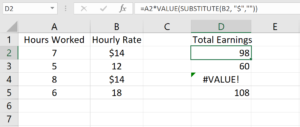
Figure: #Value! Error – Value Error
Solving Process:
- Identify and convert text entries in the “Hourly Rate” column into numbers. Utilize the SUBSTITUTE function to remove any extra characters, like the dollar sign. See in the figure D2 cell formula bar.
- But you can see the similar error without solving in cell address D4. To solve this error, we use =A2*VALUE(SUBSTITUTE(B2, “$”,””)) formula in D2.
#REF! Error – Reference Error:
The #REF! error in Excel is a reference error that occurs when a cell reference is not valid. This can happen when you delete a cell or a range of cells that a formula is referencing, or if you move cells in a way that breaks the reference.
Let’s explore this with an example:
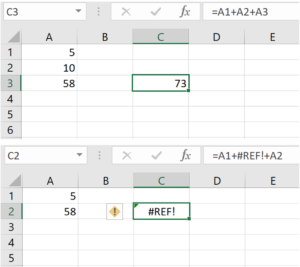
Figure: #REF! Error – Reference Error
- The formula in cell C3 attempts to sum the values in A1,A2 and A3. However, if you delete cell A2 (containing the value 10), the formula becomes =A1+#REF!+A2, resulting in a #REF! error.
- As a result of the deletion, the formula in cell C2 now displays #REF! error because it can no longer find the cells it was referencing.
How to resolve the #REF! error:
- Undo Deletion: If you accidentally deleted cells that were being referenced, you can use the “Undo” feature (Ctrl + Z) to restore the deleted cells.
- Update Formula: If you moved cells and the reference is no longer valid, update the formula to correctly reference the new location of the data. Ensure that your references are accurate and point to existing cells or ranges.
- Use Range Names: Consider using named ranges to avoid direct cell references in formulas. Named ranges are less prone to errors when you insert or delete cells.
#NUM! Error
The #NUM! error in Excel is a numeric error that occurs when a formula or function encounters an invalid numerical operation. This error is typically triggered by situations such as attempting to take the square root of a negative number, or using functions in a way that results in an invalid mathematical operation.
Let’s explore this with an example:
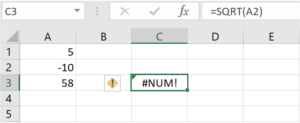
Figure: #NUM! Error
- Assume you have a formula in cell C3 attempting to calculate the square root of a number in cell A2, such as =SQRT(A2).
- As a result of A2 containing a negative value, attempting the square root operation in cell C3 leads to the #NUM! error because the mathematical operation is not valid for negative numbers.
To resolve the #NUM! error:
- Identify Error Source: Examine the formula in cell C3 causing the #NUM! error and pinpoint the problematic operation, which is the square root of a negative number.
- Prevent Square Root of Negative Number: Use an IF statement to check if A2 is less than zero before executing the SQRT function. Modify the formula as follows: =IF(A2 < 0, “Invalid input”, SQRT(A2)). This ensures that if A2 is negative, the formula returns “Invalid input” instead of attempting an invalid square root operation, thereby preventing the #NUM! error.
- Implement Error Handling: Utilize Excel functions like IFERROR to gracefully manage errors. For instance, you could modify the formula as =IFERROR(SQRT(A2), “Invalid input”) to directly handle the square root operation’s potential error and provide an alternative result if needed.
#NULL error
The #NULL! error in Excel arises when there is an invalid intersection of two ranges within a formula, often caused by using a space instead of a proper intersection operator such as a comma or colon.
Let’s explore an example:
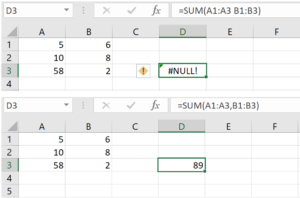
Figure: #NULL error
- Consider a formula in a cell that references two ranges, for example, =SUM(A1:A3 B1:B3).
- The space between A1:A3 and B1:B3 instead of a comma (,) results in the appearance of #NULL! error.
To resolve the #NULL! error:
- To resolve this error, you should correct the formula by inserting the appropriate intersection operator, like: =SUM(A1:A3, B1:B3).
- This ensures a valid reference between the ranges, eliminating the #NULL! error in Excel.
#N/A Error:
The #N/A error in Excel is a frequently encountered error, often observed in functions such as HLOOKUP or VLOOKUP. This error means that Excel is unable to locate the specified value within the data range.
Example of #N/A Error with possible solution:
Suppose, you are using the VLOOKUP function to find the population of a city, but the city name is misspelled or doesn’t exist in your dataset, resulting in a #N/A error.
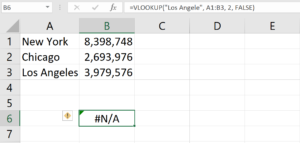
Figure: #N/A Error
- The formula attempts to find the population of “Los Angele” (misspelled) in the dataset but encounters the #N/A error because the correct city name is “Los Angeles.”
Solution:
- To address the #N/A error, it’s crucial to ensure accurate data entry and verify that the specified value exists in the dataset. In this case, correcting the spelling or using the correct city name resolves the issue.
- In this corrected example, the formula looks for “Los Angeles” in the dataset, and the #N/A error is avoided.
- The #N/A error highlights the importance of data accuracy and attention to detail, particularly in lookup functions.