
Lesson 2.3: Understanding Cell References
Objective:
Understanding Cell References in excel is the main objective in this lesson. Cell references are foundational topics to spreadsheet functionality, enabling users to create dynamic and flexible formulas. By the end of this lesson you will gain the appropriate concept of Cell References. You learn how to Use Cell References Effectively and their impact on different Cell References.
Understanding Cell References in Excel
A cell reference in Excel is an essential identifier for a specific cell or range, functioning as a variable in Excel formulas. It consists of a column letter and a corresponding row number, used to locate and retrieve data within a sheet for formula calculations.
Purpose of Cell References:
- Cell references allow retrieval of data from a cell within the same sheet, a different sheet, or even a separate workbook, facilitating its utilization in various formulas.
- Values or properties from referenced cells are utilized in formulas, contributing to result generation.
Excel records cell addresses in formulas and functions in three different ways:
- Relative cell reference.
- Absolute cell reference.
- Mixed cell reference.
Relative Cell Reference: Relative cell referencing in Excel involves calling cells using their column and row labels, like ‘A1’. When you use relative referencing in formulas or functions and copy them from one cell to another, Excel adjusts the cell addresses relative to their new position.
For example, let’s say you have a simple addition formula ‘=A1+B1’ in cell C1. When you copy this formula to cell C2, Excel dynamically updates it to ‘=A2+B2’ to match the new row.
Similarly another example, consider an average function ‘=AVERAGE(B2:B5)’ in cell B6. When you copy this function to cell C6, Excel adjusts it to ‘=AVERAGE(C2:C5)’ to reflect the new column.
Use Relative Cell References:
- You should use relative cell references in Excel when you want formulas or functions to adjust dynamically as you copy them to different cells.
- Relative references change based on the new location, which is helpful when working with data that may be rearranged or expanded in your spreadsheet.
How to use Relative Cell Reference in Calculation:
Suppose you have a table where column A represents different expense categories, column B contains the amounts spent, and columns C and D are for calculations. We’ll use relative, absolute, and mixed cell references to perform calculations.
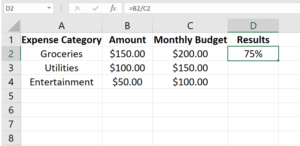
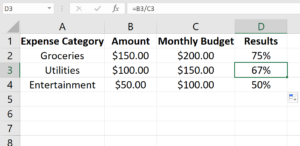
Figure: Relative Cell Reference
Here, we calculate the percentage of the monthly budget spent on each category. [Note: To show percentage sign in the values, make sure the cell type is percentage.]
- Start with the groceries, in cell D2, type =B2/C2 formula to calculate the percentage.
- And for other categories, right down of the selected cell D2, there will be a point where if you take the mouse then the sign of the mouse will be plus (+). On that plus, double click that will copy the formula for other cells automatically.
- Now, if we check other cells D3, D4 then we will see the formula references are changed to B3/C3, B4/C4 based on the respective cells. This is known as “Relative Cell Reference”.
Absolute Cell Reference: Absolute cell references in Excel always point to the same cell, regardless of where you copy the formula or function. To make a reference absolute, you use dollar signs (‘$’) before the column letter and row number, like ‘$A$1’. You can add these dollar signs by typing them or using the F4 shortcut after entering the cell address.
How to use Absolute Cell Reference in Calculation:
In the following figure,
- We create the monthly budget expense spreadsheet. Monthly expenses without VAT are written in column Amount.
- We wanted to calculate expenses as 10% VAT in cell D2. We store the VAT 10% information in cell C9. Note that here VAT is fixed or constant.
- In D2, we write formula =B2*$C$9, “$” in C9 makes the reference absolute that means not changeable.
- After that, we drag and drop this formula for each category. You can see in the second figure that the C9 reference remains constant in the D4 cell as well. This constant reference is known as Absolute reference.
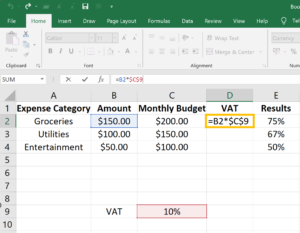
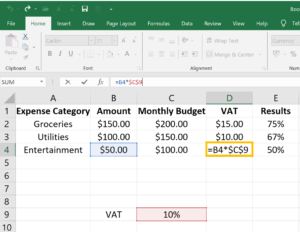
Figure: Absolute Cell Reference
Use Absolute References:
- Use absolute cell references in Excel when you want a cell reference to remain fixed, unaffected by copying or filling. This ensures that the reference doesn’t change as you move or replicate formulas across cells.
- Absolute references are handy when you want a constant value in a formula or function. If you put a constant in a cell and use an absolute reference to that cell in different formulas, changing the constant value in that one cell updates all formulas using that reference. This is more efficient than typing the constant directly into each formula.
Mixed Cell Reference: A mixed cell reference is used when you want part of the reference to be absolute and part to be relative. This allows you to fix either the row or the column while allowing the other to adjust.
For example, consider the formula ‘=A$1 + $B2’. Here, the row of cell A1 is fixed, and the column of cell B2 is fixed. Like absolute referencing, you add a dollar sign (‘$’), but only in front of the column OR row identifier for the referenced cell.
To quickly add dollar signs using the F4 keyboard shortcut:
- Type ‘=’ in the active cell.
- Enter a cell address either by typing or using point mode.
- Press F4 once – both the column and row identifiers become absolute.
- Press F4 again – the column becomes relative, and the row remains absolute.
- Press F4 again – the column becomes absolute, and the row becomes relative.
- Press the Escape key to deactivate the F4 key.
Use Mixed Cell References:
- Use a mixed reference when you want to fix either the row or the column while allowing the other to adjust as you copy the formula to different cells.
- When you are copying formulas either horizontally or vertically and want certain parts of the reference to remain constant (Absolute Reference) while others adapt Relative Reference.
- If you want formulas to dynamically adjust to changes in rows or columns without manual modifications.
- For easier maintenance of formulas, especially when you need to modify them. Mixed references can reduce the effort required to adapt to changes in the data structure.
Every single cell reference can contain both relative and absolute reference. Because, in every cell reference there are two parts – one is for columns which are denoted by english letters (A,B,C…..), another represents a row that is the number (1,2,3….). For example A1, B5, G6 and so on. We know from the previous sections that the difference between relative and absolute can be identified by dollar ($) sign. To recap, there is no $ sign in relative, but in absolute there is. In the table, we denoted column as C, row as R, yes as Y and no as N. Now, we clearly visualize that if there is $ sign in column (C) and row (C) both then it is an absolute reference because row and column both are constant here. On the opposite, if both are no then it is a relative reference. However, when there is a mix of Y and N then it is a mixed reference because that contains both relative and absolute references.
| SIGN | LETTER – COLUMN – C | NUMBER – ROW – R | MEANINGS |
| $ (BEFORE) | Y | Y | ABSOLUTE |
| Y | N | C – ABSOLUTE R – RELATIVE | |
| N | Y | C – RELATIVE R – ABSOLUTE | |
| N | N | RELATIVE |
How to use Mixed Cell Reference in Calculation:
In the figures, we can see the usage of mixed cell references.
- Suppose, we want to have a calculation of probable cost for 10% and 20% VAT on the total amount for each category. In this case, amount column B will be absolute or fixed but the row number will change category wise.
- Similarly, the VAT column will change within C and D but row 9 will be the same to maintain the accurate references.
- Thus, we use formula =$B2*C$9 in D2 that means in B2 can change the number B3, B4,…. but not C2, D2, …. And in C9 can change to D9, E9,… but not D10, D11,……
- In the next figure, we can observe the changes in B3 and D9. This is known as “Mixed cell reference”.
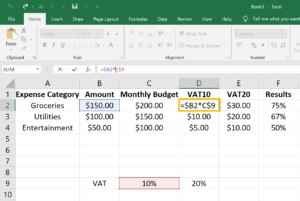
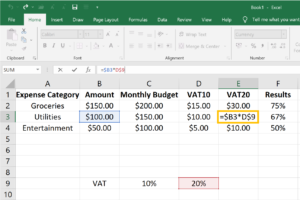
Figure: Mixed Cell Reference
Understanding cell references is the primary knowledge for having the full potential of Excel. Whether you are crafting complicated formulas or establishing connections between data points, the understanding of relative, absolute, and mixed references empowers you to navigate and manipulate your spreadsheet data with precision and efficiency.