
Lesson 2.3: Connecting to Data Sources
Objective:
In Lesson 2.3, you will learn how to connect Tableau Desktop to various data sources and establishing connections to data sources is a fundamental step in Tableau Desktop, enabling you to access and analyze the data needed for your visualization projects. Tableau offers flexibility in importing data from diverse sources like spreadsheets, databases, and cloud services.
So, from this lesson, you will be able to successfully connect Tableau Desktop to different data sources, facilitating the importation and analysis of data within the software for your visualization projects.
Connecting to Your Data:
Tableau can connect with various sources available such as Excel Files, Text Files, PDF Files, JSON, Access, PDF, Spatial, Statistical, Databases (with ODBC Connector), Websites, Servers and many more.
SO, When you first launch Tableau Desktop, the start page( Lesson 2.2: Tableau Desktop Starting Page Overview ) has a blue column on the left side labeled Connect. It has several choices for connecting to data.
Note: Tableau Desktop is not like MS Excel – you do not create spreadsheets in Tableau; you connect to existing spreadsheets (or other data sources) to create visualizations.
Data Connection Types:
The blue sidebar lists all data connection options. When you see the option that most closely matches where your data is, click on the name of the option and follow the prompts.
For example, if you’d like to connect to an Excel spreadsheet, you’d click the words “Microsoft Excel” at the top of the “To a File” section.
The list of data connections is split into three sections:
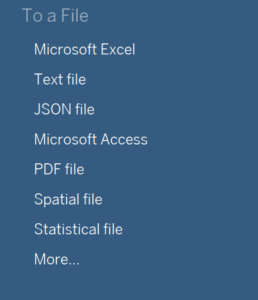
To a File:
- This section is to connect to data that is stored in a file on your computer, such as a Microsoft Excel spreadsheet.
- There’s a short list of common file types. If you don’t see the type of file you’d like to connect to, you can click More.
To a Server:
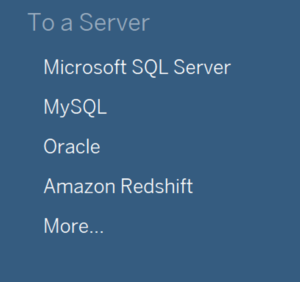
- Server-based connections do not connect to a file—instead, they connect to a “server.”
- Generally speaking, This section is to connect to data that is stored on a server, such as Tableau Server or Microsoft SQL Server.
- There’s a short list of common server types. If you don’t see the type of server you’d like to connect to, you can click More.
Saved Data Sources:
- If you don’t have a data source but would like to experiment with Tableau, don’t worry! Tableau has two sample spreadsheets built in. You can click either “Sample – Superstore” or “World Indicators” to open a new Tableau workbook and work with that data.
Note: If this is your first time using Tableau, we’d recommend using the “Sample – Superstore” data source, which is what we’re using for all screenshots in this guide.
Now, let’s explore the process of connecting to a text file and Server-based connections within the Tableau Desktop. This involves establishing a link between Tableau and the text file, enabling us to integrate and analyze the data contained in the file using Tableau’s powerful visualization and analytics tools.
Connecting to a Text File in Tableau Desktop:
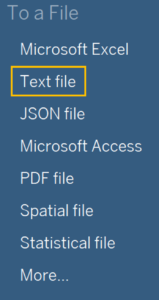
Step 1: Open the Data Tab: Click on the “Text File” option available in the Data tab.
Step 2: Choose the Text File:
- Choose the desired text file, for example, SuperStore.csv.
- Click on the “Open” option. This action establishes the connection between the selected text file and Tableau.
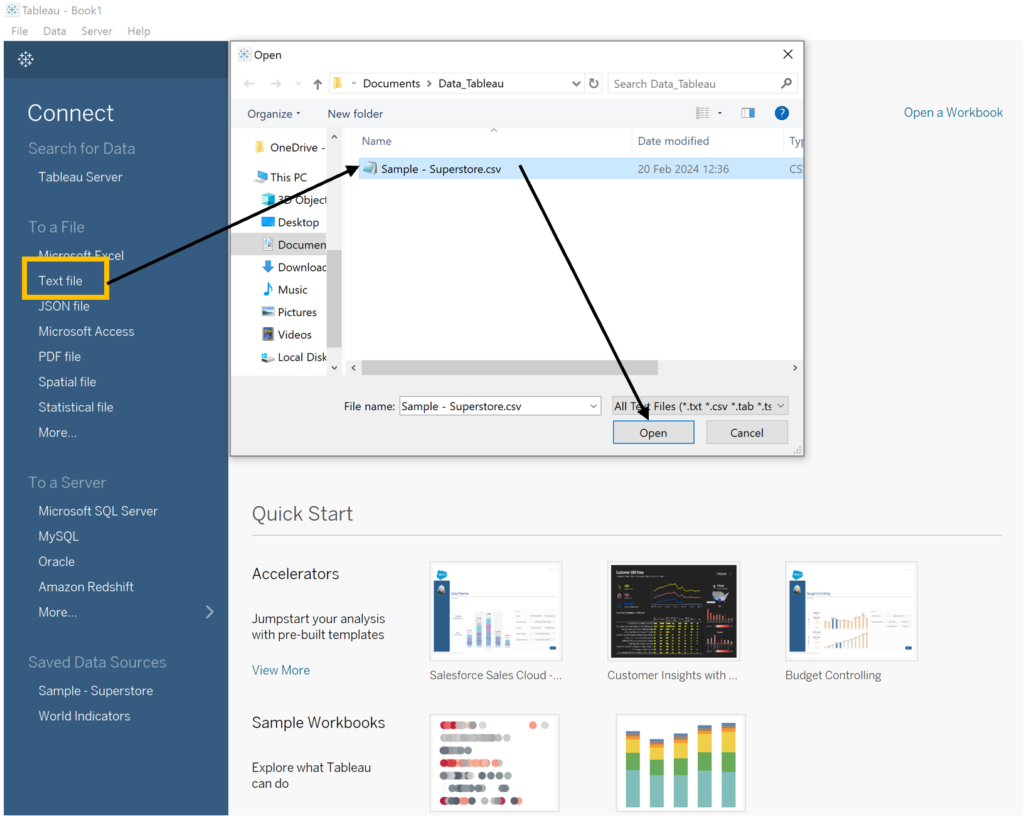
Step 3: Establish Connection: Click on the “Open” option to establish the connection between the selected text file and Tableau.
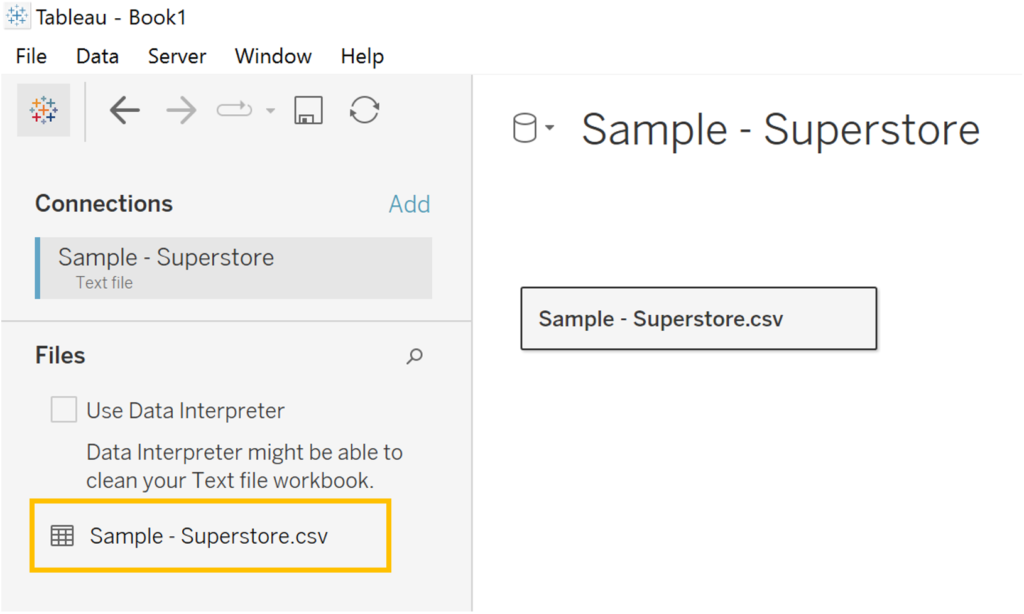
When successful completion of these steps, you will notice the CSV file listed in the left pane, indicating a successful connection to the text file in Tableau.
Connecting to a Database in Tableau Desktop
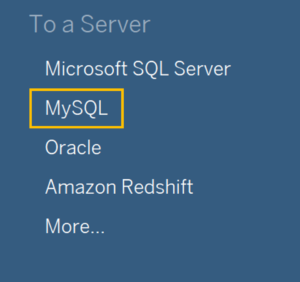
Step 1: Click on the required database connection provided in the data tab. For instance, if you intend to connect to a MySQL database, select the “MySQL” option.
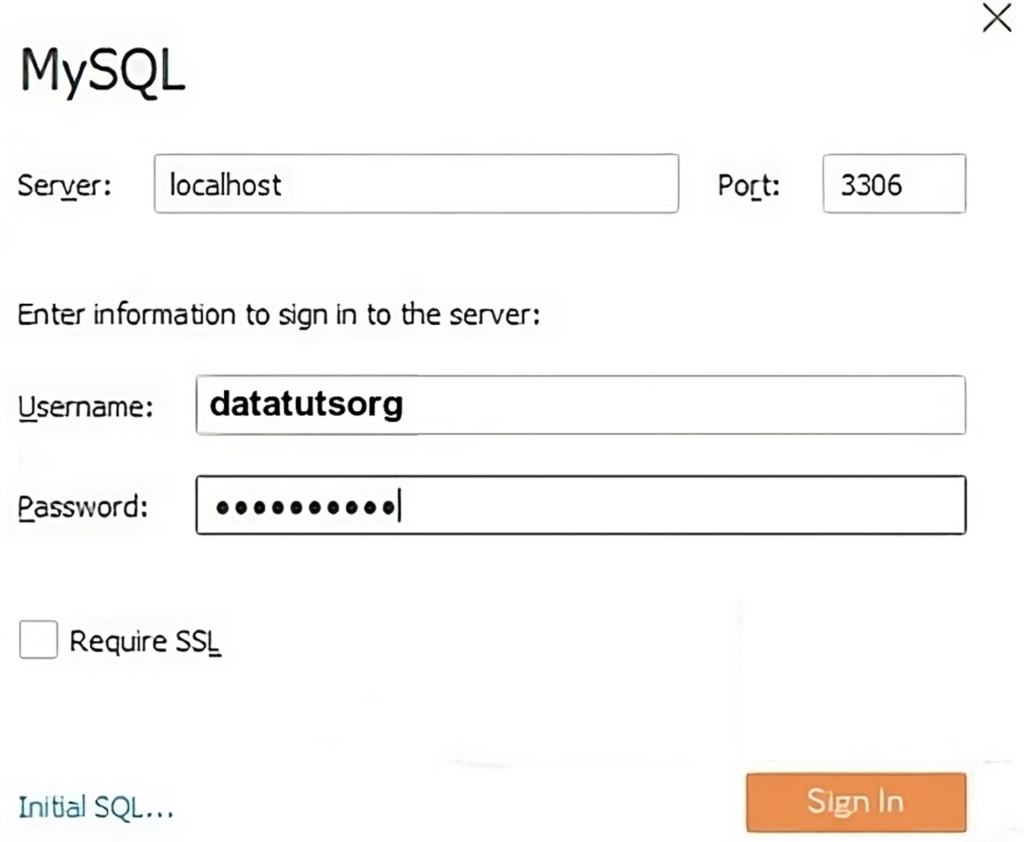
Step 2: This action will prompt the MySQL connection window to open.
- Enter the MySQL server name.
- Optionally, modify the “Port” if necessary.
- Input the username and password used to access the database.
- Click on the “Sign in” button to establish the connection to the database.
Note: This process successfully links the database to Tableau.
When you successfully complete the connection, you can proceed to:
- Select specific tables from the database for import into Tableau.
- Establish relationships between multiple tables by joining them.